Shape
The Shape card controls the geometric form of the tile, its fill color and an optional gradient.
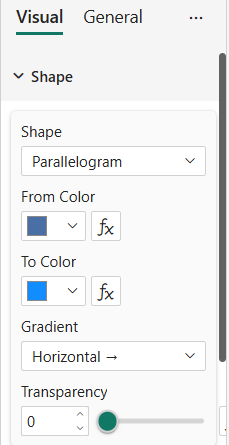
Properties
| Property | Description | Default |
|---|---|---|
| Shape | Geometry of the tile (17 options — see below) | Rectangle |
| Trapezoid Angle | Slope angle (°) — only when Shape is Trapezoid | 75 |
| From Color | Primary fill color. Supports conditional formatting (fx). | #4A6FA5 |
| To Color | Second color of the gradient. Supports conditional formatting (fx). | #4A6FA5 |
| Gradient | Direction of the linear gradient: None, Horizontal →, Vertical ↓, Diagonal ↘, Diagonal ↗ | None |
| Transparency | Fill opacity (0–100%). Supports conditional formatting (fx). | 0 |
Available shapes
| Shape | Notes |
|---|---|
| Rectangle | 4 corners — supports per-corner styling |
| Circle | Inscribed circle (no corners) |
| Ellipse | Elliptical fit to the container |
| Diamond | 4 corners — supports per-corner styling |
| Triangle | 3 corners — supports per-corner styling |
| Pentagon | Convex angles (inscribed circle fit) |
| Hexagon | Convex angles (inscribed circle fit) |
| Octagon | Convex angles (inscribed circle fit) |
| Star (5) | Convex + reflex angles |
| Star (6) | Convex + reflex angles |
| Arrow | Convex + reflex angles — use Mirror H/V + Rotation for direction |
| Chevron | Convex + reflex angles — use Mirror H/V + Rotation for direction |
| Parallelogram | 4 corners |
| Trapezoid | 4 corners + Trapezoid Angle slider |
| Cross | Convex + reflex angles |
| Heart | No corners (curved path) |
| Pill | No corners (rounded ends) |
Triangle, arrow and chevron come in a single canonical orientation. To get other variants (down-arrow, left-chevron, etc.) combine Mirror Horizontal, Mirror Vertical and Rotation from the Transform card.
Gradient
Pick two colors in From Color and To Color, then set Gradient to a direction other than None. The gradient is rendered as an SVG <linearGradient> filling the entire shape.
When the Series Color data role is bound to a measure, the gradient is automatically forced to None and both colors are overridden by the data value. See Data Roles.
Transparency & conditional formatting
Transparency, From Color and To Color all expose the fx button. Use it to drive these properties from a measure or rule based on your data:
TileColor = SWITCH(
    TRUE(),
    [KPI] >= [Target],            "#2E8B57",
    [KPI] >= 0.8 * [Target],      "#DAA520",
                                  "#B22222"
)